Additional Practice
In this page are exercise prompts and solutions to practice concepts. They are project-agnostic, which means that exercises do not correspond to any long-term project. Rather, students are given initial instructions to setup their exercise and their job will be finish any section marked TODO.
Sprite Creation and Movement With Inputs
Create an Apple (Easy)
First, create a new sprite by clicking on the + and find apple. Name this sprite Apple.png. Then, create a class and name it Apple. Remember that classes creates objects according to the code you give in Start and Loop. Each object can hold only one single sprite. A sprite is just an image. While a sprite object is a coding object returned by the function sprite. The function sprite, the sprite object, and a sprite are three different things.
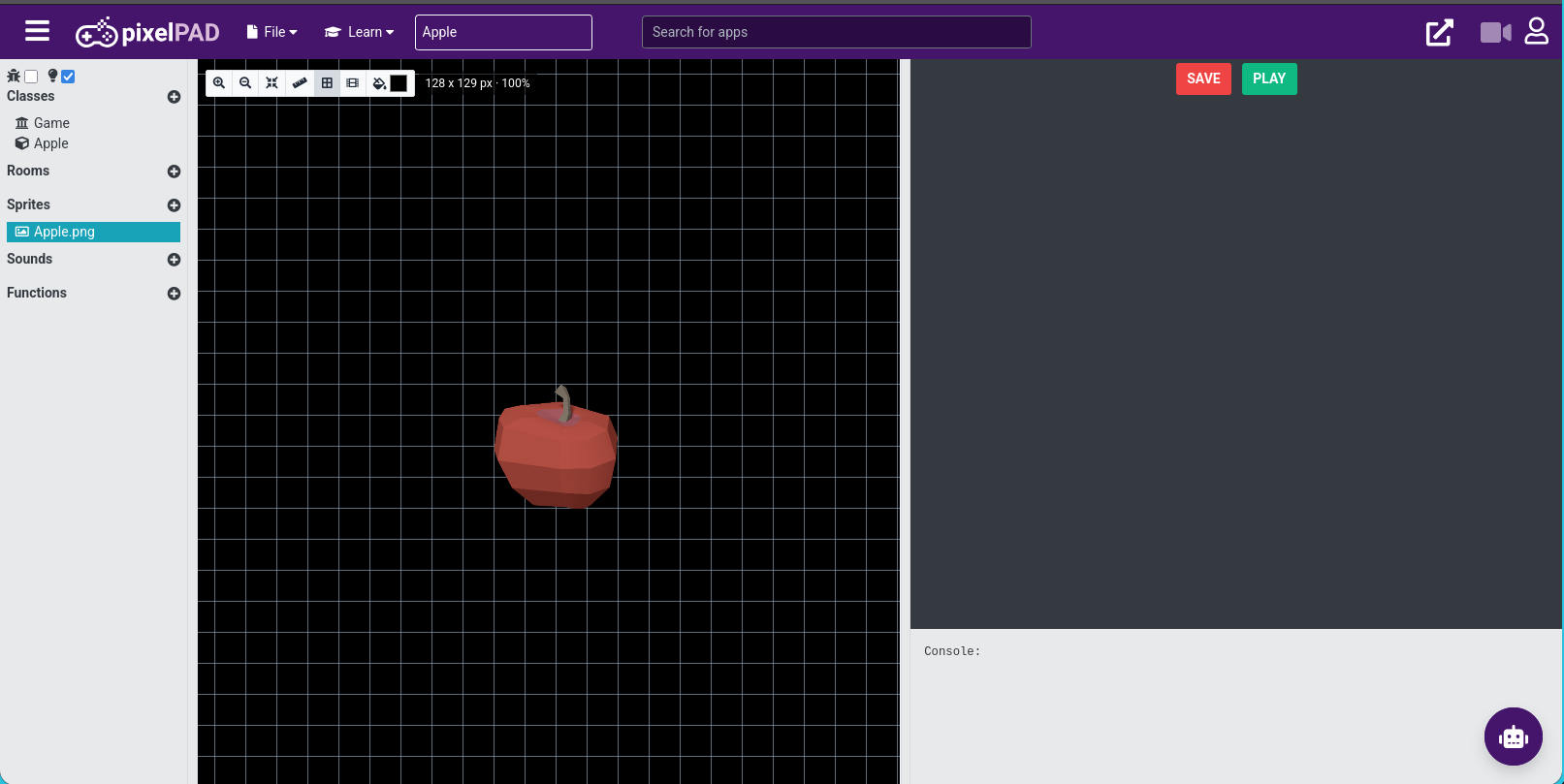
Then, we’re first going to be coding in Game Start. Go ahead and tell the class Apple to create an object. Do you remember how to do it? If not, don’t look at the solution before reviewing the create a sprite activity.
Solution - Calling class Apple
Game Startapple = Apple()Note that you don’t have to make a variable to keep track of the object the class Apple creates.
Here’s an alternative solution that doesn’t create a variable.
Game StartApple()Next, we’re going to code the class Apple. Right now, we’re only telling the class Apple to run the code inside Apple Start and Apple Loop, which there’s nothing in there.
Here are a few review questions to get you started.
What’s the difference between the code that you put inside
Startversus the code you put insideLoop?Solution - Start vs. Loop
The code you put inside
Loopwill run multiple times. Specifically, pixelPad will try to run it 60 times a second. This means you can redraw things on the screen 60 times a second. The code you put insideStartwill only run one time.Inside
Apple StartandApple Loop, what is the variable that keeps track of the object the classAppleis creating?Solution - Variable Refering to Object Created By the Class Apple
This variable is called
self.What are some variables that are inside an object created by a pixelPAD class and how do you access and change them?
Solution - Variables inside pixelpad objects
These variables, or more specifically built-in object variables can be found at the bottom of the pixelPad documentation page on objects.
https://pixelpad.io/docs/?c=objects
Some of them are: x, y, z, sprite, scaleX, scaleY, skewX…
Let us say we want to change the variable sprite, we have to first access the object being created by the class through the variable
self.Apple Startself.sprite = ...The
...means you still have to write something there for the code to work but this solution is not including it. What you have to write here you’ll be tasked of in the next question.What is a
value? What keeps track of avaluein Python? Whatvaluedo you assign to the object variablesprite? Whatfunctioncreates that value?Solution - Working with variable sprite
Here, we’re assigning a
sprite objectto the variablespriteof the object the classAppleis creating. Thesprite objectis created with the functionsprite. The functionspriteneeds at minimum astring valuewhich is the name of thespritefor it to create and return asprite object.Apple Startself.sprite = sprite("Image.png")
With this, you should be able to put an apple on the screen.
Full Solution
Here’s an additional challenge:
How would you assign the sprite object to the variable sprite of the object created by the class Apple without writing any code in Apple Start or Apple Loop?
Solution - Without Apple Start and Apple Loop
You can set the variable sprite anywhere if you have access to the variable that keeps track of the object created by the class Apple.
Game Startapple = Apple()
apple.sprite = sprite("Apple.png")Positioning Fruits (Easy)
We’re continuing from the previous exercise where we created our apple. Make sure you understand the extra challenge problem (the last question).
Go and add in two more fruits: a banana and orange. Name the sprites Orange.png and Banana.png. Then together with the apple, make them appear in the middle of the screen. Go check out the previous exercise if you haven’t already.
Put the code that assign the sprite object to the variable sprite inside Apple Start, Orange Start, and Banana Start and not inside Game Start (like that of the code of the extra challenge problem of the previous exercise).
Solution - Orange Start
Orange Startself.sprite = sprite("Orange.png")Solution - Banana Start
Banana Startself.sprite = sprite("Banana.png")Make sure use all three classes to create three different objects. Make it so that only the banana appears on the center of the screen even though the orange and apple is also on there.
Solution - Game Start
Game StartApple()
Orange()
Banana()This also works, as long as the banana object is created last.
Game StartOrange()
Apple()
Banana()Now, only inside Game Start, position the apple, orange, and banana so they do not position on top of each other. You’ll have to create three variables and use the object variables x and y.
Solution - Positioning Apple
Game Startapple = Apple()
Orange()
Banana()
# can be different numbers for x and y
apple.x = 100
apple.y = 200Full Solution - Game Start
Game Startapple = Apple()
orange = Orange()
banana = Banana()
# can be different numbers for x and y
apple.x = 100
apple.y = 200
banana.x = -100
banana.y = -200
# The following 2 lines are unnecessary
orange.x = 0
orange.y = 0Additionally, here’s a version of Game Start that’s going to randomly position these fruits. You can just view it and study as new materials.
Randomizing Fruit Positions
Game Start# Importing code from a built-in Python file called random
# to use the function randint by writing random.randint(min, max)
import random
apple = Apple()
orange = Orange()
banana = Banana()
# Positioning fruits randomly
# x: -400 to 400
# y: -500 to 500
apple.x = random.randint(-400, 400)
apple.y = random.randint(-250, 250)
orange.x = random.randint(-400, 400)
orange.y = random.randint(-250, 250)
banana.x = random.randint(-400, 400)
banana.y = random.randint(-250, 250)